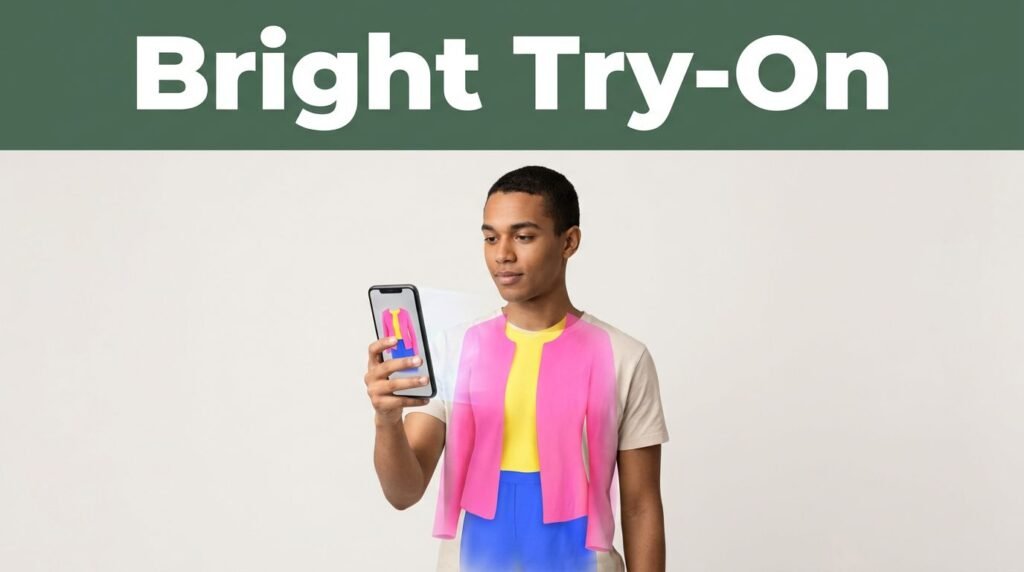
Photo editors and AI virtual try-on programs let you see yourself in different outfits and bright colors. You can try on hot pink, sunny yellow, cobalt blue, or bold prints in a photo before spending any money.
Seeing a preview can make wearing colorful clothes feel less intimidating. However, one image might not be accurate, so try out different colors, lighting, and backgrounds before making a decision.
Which Programs Can Put New Clothes and Colors on Your Photo?
AI virtual try-on apps use your photo to create a new outfit on your image. Some use store product photos, while others let you describe what you want, like “bright orange blazer with wide-leg pants.”
Google now offers virtual try-on shopping features that show how clothes look on different models. Availability depends on the product, your device, and where you live, so check what is available in the United States.
Photo editors work differently. Adobe Photoshop uses generative tools to swap out clothing or change parts of an outfit, but the results depend on your original photo. Clear photos that show your shoulders, arms, and waist give better results.
Online tools like Canva and Fotor also have AI photo-editing features to help you try out outfit ideas. Photoshop’s generative AI tools are helpful if you want more control, like changing just a jacket or blouse.
Every tool has its limits. Some only change the color of your clothes, while others create a full outfit but might change your shape, neckline, hands, or fabric details. Check the latest pricing, support, and export options before uploading photos.
Should You Use Different Settings When Testing Bright Clothing Colors?
Yes, especially when you are looking at bold colors. A shade that looks bright in one preview might seem harsh or dull in another. Usually, the difference comes from the image settings, not the color itself.
Change one setting at a time. Try the same red blouse with warmer and cooler light. Then keep the lighting the same and compare a less saturated red with a brighter one. Save each version with a simple name to stay organized.
Backgrounds are more important than you might think. A white wall can make yellow look brighter, while a dark room can make cobalt blue look almost black. Colorful backgrounds might distract from your outfit and hide its true effect.
A virtual preview is meant to help you explore options, not decide for you what you should wear.
Try out colors to see how they look next to your face, hair, and favorite clothes. You do not need strict color rules to wear bold shades. If a bright green top makes you happy and matches what you own, that matters.
How to Get a More Trustworthy Virtual Outfit Preview
The quality of your preview depends on your source photo. Use a recent picture where your face and body are clear, instead of a dark mirror selfie with your arm in the way.
Here are some steps to get better results:
- Take a clear photo in natural daylight or soft indoor light. Try to avoid strong shadows on your face or clothing.
- Face the camera and keep your arms a little away from your sides so your outline is easy to see.
- If you can, wear simple, fitted clothes. Loose layers can make it harder for the tool to detect your body and clothes correctly.
- When possible, upload a garment photo with a plain background. Product images usually work better than cropped photos from social media.
- Generate more than one version. CoCreate several versions and compare them side by side. Look at differences in lighting, saturation, shade, and background before buying. Review photos, fabric details, and the store’s return policy.
AI tools can blur rings, hands, earrings, hems, buttons, and patterns. Sometimes, denim looks smooth or a sweater appears thinner than it really is. That’s why Fotor’s AI clothes changer and similar tools are best for getting ideas, not for seeing exactly how something will fit or drape.
Comparing similar colors side by side is helpful. Try tomato red next to cherry red, or turquoise next to teal. Even small changes can affect how the outfit looks on you.
A virtual outfit preview can make it easier to try something new in real life. You do not have to wear all neon just because you tested a bright look online.
Begin with one colorful item in a style you know. A bright blouse with blue jeans feels easy because jeans are already part of your routine. A bold blazer over a simple black dress adds color without changing your whole look.
Colorful pants go well with a white shirt, loafers, or clean sneakers. If wearing bright clothes feels like too much, try a bold bag, earrings, or shoes with a simple outfit.
Compare your virtual image with the clothes in your closet. A bright coral top becomes easier to buy when you know it works with your denim jacket, tan pants, and favorite skirt. The goal is not to copy the generated image exactly. It is to find a color you will enjoy wearing again.
A Brighter Way to Try New Clothes
AI try-on tools and photo editors help you imagine yourself in new clothes before you shop. Looking at several previews gives you a better idea than relying on just one polished image, especially with bright colors.
Try out different lighting, saturation, backgrounds, and nearby colors. Use the previews as a guide while you check the real item’s fit, fabric, and return policy.
Begin with one colorful piece that matches your wardrobe. You will feel more confident with color each time you wear a shade that feels right for you.
This post may contain affiliate links. If you make a purchase through these links, I may earn a small commission at no extra cost to you.